
Most merchant fulfilled guides tell you to list and ship. This one shows you the warehouse system that makes MF sustainable at 500, 1,000, even 5,000 books — without losing your mind when orders come in.
The piece most sellers are missing isn’t the listing workflow. It’s the organization system behind it: how every book gets a location the moment it’s listed, how orders get pulled in under 30 seconds, how restricted books route to eBay automatically instead of piling up. Get that right and MF runs in under 30 minutes a day.
This guide covers the complete setup for sellers with 100 to 5,000 unique books — a home shelf, spare room, or small storage unit.
When Does Merchant Fulfilled Make Sense?
The short answer: MF makes sense when you have high-condition inventory, competitive pricing, and a manageable warehouse setup.
FBA makes more sense when you want passive fulfillment — you prep your books, ship them in, and Amazon handles storage and shipping. Great for volume sellers who don’t want to touch individual orders.
The real decision depends on your operation size, capital, and how involved you want to be. For a deeper breakdown, see FBA vs Merchant Fulfilled for Books: Which Should You Use?
Why MF Is Worth It Right Now
Something changed with Amazon’s buy box algorithm. Condition and price are now the two biggest factors for winning the buy box on used books — shipping speed still matters, but it’s no longer the dominant factor it used to be.
What this means in practice: a Very Good condition book at a competitive MF price can win the buy box over an FBA listing. The automatic bump that FBA used to get is largely gone for books.
For sellers who grade accurately and price competitively, MF is more viable than it’s been in years.
The $3.99 Shipping Credit: How It Actually Works
When a buyer purchases a merchant fulfilled book on Amazon, Amazon charges them $3.99 for standard shipping. That $3.99 is passed to you as a shipping credit — it shows up in your payment alongside the item price.
Your job is to ship the book for as close to (or under) $3.99 as possible. Here’s how the math works:
- If your actual shipping cost is under $3.99 — you keep the difference. A Media Mail shipment that costs $2.80 means you pocket $1.19 on shipping.
- If your actual shipping cost is over $3.99 — you cover the difference out of your margin. This is why accurate weight on the scale matters.
USPS Media Mail is the reason MF books work financially. For most books under 2 lbs, Media Mail costs $2.50-$3.50 — putting you at breakeven or slightly ahead on shipping every time. For heavier books, weigh them before listing and factor that into your pricing.
Note: Individual Seller accounts (no monthly fee) have the $3.99 shipping credit fixed by Amazon and cannot set custom rates. Professional Seller accounts ($39.99/month) can create custom shipping templates and set their own rates — which is what this guide covers.
Important for pricing: When you price a book, factor the shipping credit into your total. Your effective revenue per book is the item price plus the $3.99 shipping credit, minus Amazon’s referral fee (15%) and the $1.80 media closing fee, minus your actual shipping cost. A book listed at $5.00 with $3.99 shipping credit actually nets you more than it looks — but a book where your actual shipping cost runs $5.50 eats into that credit fast. Always know your shipping costs before setting your price floor.
What Seller Central Can’t Do (And AccelerList Can)
If you’ve been listing manually in Seller Central, you already know the friction: one book at a time, no ticket printing, no eBay cross-listing, no condition macros. It works, but it doesn’t scale.
Here’s what changes with AccelerList:
- Batch scanning at full speed — scan books as fast as you can pick them up. AccelerList queues ahead of Amazon’s processing, so you never wait for a response before scanning the next book.
- MF tickets print automatically — every book gets a labeled ticket the moment it’s listed. No separate step, no manual labeling.
- Restricted books route to eBay automatically — instead of an error that stops your session, restricted books silently become eBay listings. You keep moving.
- eBay cross-listing in one step — submit your batch, confirm eBay cross-listing, done. Both platforms live simultaneously.
- Condition macros — tap to describe each book’s condition. AccelerList writes the note for you.
Seller Central is the backend. AccelerList is the listing engine that sits in front of it.
What You Need Before You Start
- Amazon Seller Central account — Professional plan ($39.99/mo) once you’re listing more than 40 books/month. Pays for itself immediately by eliminating the $0.99/item fee.
- Barcode scanner — Any Bluetooth scanner in the $20-30 range works. Get Bluetooth over USB — you want to be able to move around your shelf without being tethered to a laptop.
- Label printer — Dymo LabelWriter 550 is the go-to for MF. It prints the MF tickets that go inside each book and handles shipping labels. The Rollo works too but the Dymo is faster for the ticket workflow.
- Scale — Accutech postal scale, around $20. Accurate weights matter for buying shipping — being off by half a pound can push you into the next rate bracket.
- Bubble mailers — Buy in bulk on Amazon. Reuse clean Prime boxes for heavier books. Don’t overthink this.
- AccelerList — $39/mo, 14-day free trial. Batch listing, MF ticket printing, condition macros, and eBay cross-listing in one tool. This is the center of the whole workflow.
Step 1: Set Up Your Shipping Template
Go to Settings → Shipping Settings → Create New Shipping Template. Here’s what to actually set:
- Standard shipping: USPS Media Mail. This is the cheapest legal option for books — typically $2.50-$3.50 for most paperbacks and hardcovers under 2 lbs. Delivery is 5-14 days, which most used book buyers accept. Set this as free standard shipping — it improves buy box positioning and Media Mail costs less than the $3.99 shipping credit you receive anyway.
- Expedited shipping: USPS Priority Mail. Charge $4.99-$6.99 for this. Some buyers will pay for faster delivery, especially on higher-priced books.
- Transit time: Set 5-8 days for standard, 2-3 days for expedited. These are the carrier transit times after you hand off the package — not your handling time.
One decision worth making upfront: free standard shipping vs. charging for it. Most experienced MF book sellers offer free standard and charge for expedited. Free standard helps win the buy box; the Media Mail cost is low enough that you absorb it without losing margin.

Step 2: Set Your Handling Time
Handling time is separate from the shipping template. It’s the number of business days you need to pack an order and hand it off to the carrier after a customer places it. Set it in Settings → Shipping Settings → General Shipping Settings.
Set handling time to 1-2 days. This is your daily batching window — the amount of time you have to process orders before Amazon considers them late.
The daily batching strategy that makes this work: check your Unshipped orders once a day at the same time. Pull all books for that day’s orders, pack them all, and hand off in one session. As long as you’re consistent, you never miss a ship date.
Amazon also offers Automated Handling Time (AHT), which adjusts your handling time per SKU based on your shipping history. This can improve your delivery estimates over time, but it’s optional — manual 1-2 days works fine when you’re starting out.
Step 3: The MF Ticket System
This is the most important step in the whole guide. Without a ticket system, merchant fulfilled doesn’t scale — you’re constantly searching for books when orders come in.

Here’s how it works:
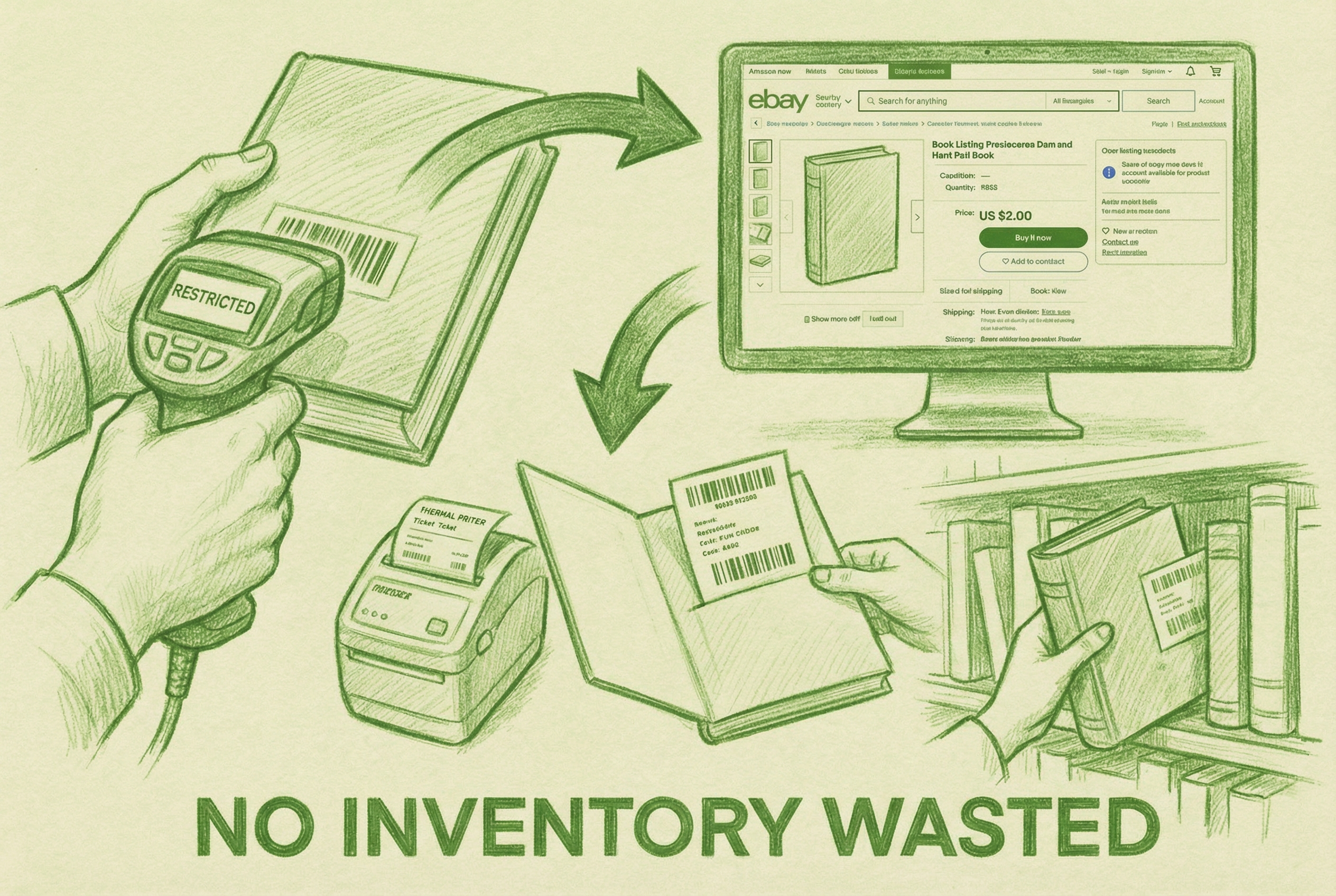
Every book that gets listed gets a ticket. AccelerList automatically prints a small label when you scan and list a book. That ticket goes inside the front cover of the book, sticking out slightly so the SKU is visible from the shelf.
The SKU is the location. When an order comes in, you look at the SKU in Seller Central, walk to that section of your shelf, and find the book by matching the SKU on the ticket. You can find any book in under 30 seconds with this system.
This system works best for 100 to 5,000 unique SKUs — the sweet spot for a home warehouse, spare room, or small storage unit. At that scale, organizing by batch and condition (which is how your SKUs will naturally cluster) keeps everything findable without needing a complex location encoding system.
For larger warehouses (5,000+ unique SKUs), you’d layer additional location encoding into the SKU template — section, shelf, position. But that’s a future problem.
The replenishments setting is critical. In AccelerList, set replenishments to NONE for every MF batch. This means every book gets a brand new unique SKU — you never reuse or duplicate SKUs. Each copy of a book is its own unique location. This is what makes the pick system work reliably.
eBay books get tickets too. When a book scans as restricted on Amazon, AccelerList automatically routes it to eBay instead of erroring out. The MF ticket still prints. That book goes on the same shelf as your Amazon inventory. Your shelf ends up with a mix: Amazon listings, cross-listed books (on both platforms simultaneously), and some eBay-only books. Everything has a location. Nothing piles up.
This is the thing that prevents the “death pile” — the stack of restricted and unsellable inventory that accumulates in most MF operations and slowly takes over your storage space. With AccelerList routing everything to eBay and every book getting a ticket, that pile doesn’t exist.
Step 4: Create a Batch in AccelerList
Open AccelerList and create a new batch:
- Name: MF-[date] — example: MF-2026-03-03. If you have employees, include the lister’s name: MF-Brandon-2026-03-03. You’ll thank yourself later when you need to trace an issue.
- Replenishments: NONE — always, for every MF batch.
- SKU template: condition + batch number. AccelerList auto-increments. Keep it simple.
Condition notes. AccelerList has a built-in condition macro system designed specifically for books. Instead of typing notes manually for every book, you toggle pre-built descriptors with hotkeys as you scan — and AccelerList assembles the condition note automatically.
The default Books & Media preset covers three categories: Markings (highlighting, names, stamps), Damage (shelf wear, creases, tears, water damage, loose binding), and Flags (ex-library, stickers, no dust jacket, musty odor). You click the descriptors that apply — AccelerList builds the condition note automatically, sorted by severity so the worst defects appear first.
A book with water damage and heavy highlighting generates: “Water damage present. Heavy highlighting/underlining.” No typing. You just tap through what you see.
This works especially well on an iPad or a Windows touchscreen laptop — you’re holding the book in one hand and tapping the screen with the other. The whole grading step takes a few seconds per book. You can fully customize the macro groups in AccelerList’s settings — add your own categories, change the wording, adjust the severity weights — but the default preset covers what most book sellers need out of the box.
On top of the macro-generated note, you can add a freeform note for anything the macros don’t cover — a specific edition note, a torn page location, a library discard stamp. The more specific the note, the fewer buyer complaints you’ll get.
Step 5: Scan and List
Pick up your barcode scanner. Start scanning.
For each book: scan the barcode → AccelerList pulls the title, category, current prices, and sales rank → you grade the condition → ticket prints → slip ticket inside front cover → book goes on the shelf.
Pricing: Match the lowest MF offer. That’s the most competitive position for merchant fulfilled books. You’re not trying to undercut — you’re trying to be the lowest MF option so buyers choosing MF see you first.
When you encounter a book flagged as restricted on Amazon, AccelerList auto-routes it to eBay. You don’t have to do anything — it just happens. The ticket still prints. The book goes on the shelf. You move to the next book.
Speed tip: AccelerList queues scans faster than Amazon processes them. Don’t wait for each listing to confirm before scanning the next book. Keep moving — the queue handles it.
Step 6: Submit and Cross-List to eBay
When your batch is done, hit submit. AccelerList will ask if you want to cross-list to eBay.
Say yes. Always.
Cross-listing doesn’t just catch restricted books — it means every book in your batch goes live on both Amazon and eBay simultaneously. Same inventory, two sales channels. For many sellers, eBay adds 30-40% on top of Amazon revenue from the exact same books.
AccelerList will then ask about photos. Add photos for rare, collectible, or out-of-print books — the kind where condition and specific edition matter to buyers and where a photo can justify a higher price. Skip photos for standard used books in the $10-15 range. You’re going for volume at that price point, the margin is $1-2 per book, and photos don’t move the needle enough to be worth the time.
The Daily Fulfillment Routine
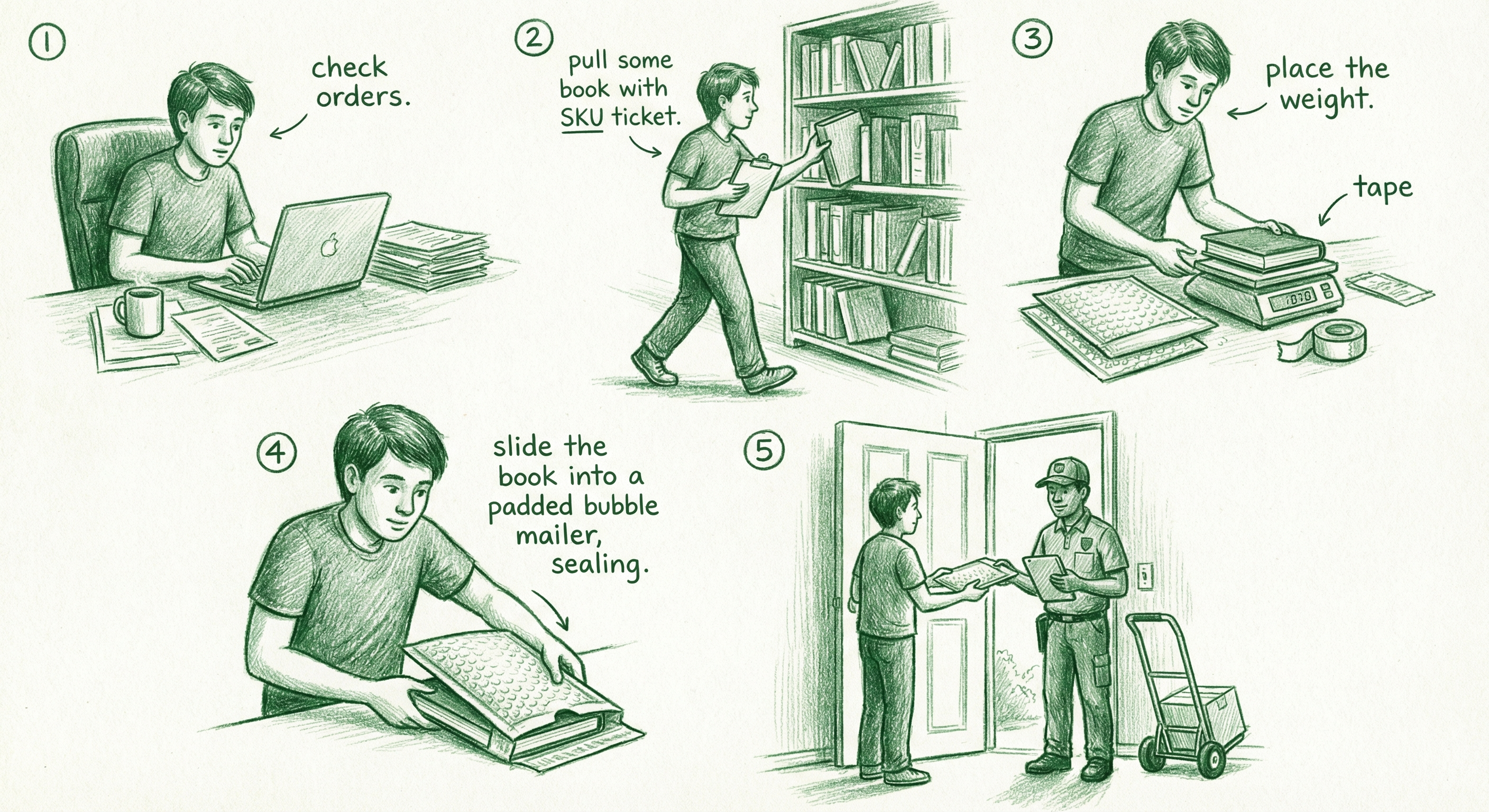
This is where the ticket system pays off.
Once a day, at the same time every day — pick a time and stick to it:
- Check Unshipped orders — Seller Central → Manage Orders → Unshipped
- Pull books by SKU — read the SKU, walk to that section of your shelf, find the book by the ticket sticking out. Under 30 seconds per book.
- Weigh each book on your scale
- Buy Shipping in Seller Central — enter the weight, choose USPS Media Mail for standard orders or Priority for expedited
- Pack in a bubble mailer, print the shipping label on your Rollo or Dymo, seal
- Hand off — UPS Smart Pickup comes to you daily for free (set up a standing pickup at your address through UPS.com), or drop at your nearest USPS or UPS location
The batch strategy is what keeps this from becoming overwhelming: you’re not running to the post office every time an order comes in. You check orders once, pull everything, pack everything, hand off everything in one session. Thirty minutes most days.
Going on Vacation
When you’re traveling or taking a break: Seller Central → gear icon → Account Info → Listing Status → Vacation Mode ON.
Your MF listings go inactive — buyers can’t place new orders. Any FBA inventory you have keeps selling. When you’re back, turn Vacation Mode off and everything reactivates automatically.
Don’t try to power through holidays. The batching strategy works when you’re consistent, and inconsistency creates late shipments that hurt your account health. Vacation Mode exists for a reason — use it.
Start Listing Today
The fastest way to start is to set up your shipping template and handling time in Seller Central, then open AccelerList and create your first batch. Everything else — the ticket system, the eBay cross-listing, the daily routine — falls into place once you’re scanning.
AccelerList is $39/month with a 14-day free trial. No long-term commitment.
Handling Refunds and Cancellations
This is the part most guides skip. Here’s what actually happens when a buyer wants to return or cancel.
Cancellations
Buyers can cancel an order themselves within 30 minutes of placing it. After that, they have to request a cancellation from you.
If a buyer messages you asking to cancel — ask them to submit the request officially through Seller Central (Manage Orders → Cancel Order). If you cancel based on a Buyer-Seller Message without the official request, it counts against your Cancellation Rate. Keep that below 3% or Amazon starts restricting your listings.
If the order has already shipped, you can’t cancel it. Tell the buyer to refuse the package at delivery, then process a refund when it comes back.
Returns and Refunds
Amazon’s standard return window is 30 days from delivery. For books, returns are often automatically authorized — the buyer gets a prepaid return label without you having to do anything. You pay for that label if the return is your fault (wrong item, significantly not as described). The buyer pays if they just don’t want it anymore.
Once you receive a returned book, you have 4 calendar days to issue a refund (updated January 2026 — was 2 business days). If you don’t, Amazon will refund the buyer automatically and charge your account.
If a returned book comes back damaged or in worse condition than you sent it, you can issue a partial refund and charge a restocking fee of up to 20% of the selling price.
Avoiding A-to-Z Claims
An A-to-Z Guarantee claim is what happens when a buyer escalates to Amazon because you didn’t resolve their issue. These hurt your account health far more than a normal refund.
The fastest way to avoid them: respond to every buyer message within 24 hours, issue refunds proactively when something goes wrong, and ship with tracking so you can prove delivery. If an A-to-Z claim is filed, you have 5 business days to respond with evidence — tracking confirmation, delivery proof, screenshots of the conversation.
For most book sellers operating honestly, A-to-Z claims are rare. Accurate condition notes and good grading prevent the majority of “item not as described” complaints before they happen.
Frequently Asked Questions
How does the $3.99 Amazon shipping credit work for merchant fulfilled books?
When a buyer purchases your merchant fulfilled book, Amazon charges them $3.99 for standard shipping and passes that credit to you. You then purchase the actual shipping label — typically USPS Media Mail for $2.50-$3.50 for most books. If your actual shipping cost is under $3.99, you keep the difference. If it’s over, you cover the gap out of your margin.
How do I handle returns as a merchant fulfilled Amazon seller?
Amazon’s standard return window is 30 days from delivery. Returns within policy are often automatically authorized — the buyer gets a prepaid return label. Once you receive a returned book, you have 4 calendar days to issue a refund or Amazon will refund the buyer automatically and charge your account. If the book comes back damaged, you can issue a partial refund and charge a restocking fee of up to 20%.
How do I handle order cancellations as a merchant fulfilled seller?
Buyers can self-cancel within 30 minutes of ordering. After that, they submit a cancellation request to you. Always ask buyers to use the official cancellation flow in Seller Central — cancellations processed via Buyer-Seller Messages count against your Cancellation Rate metric. Keep your Cancellation Rate below 3% to avoid account restrictions.
What is the difference between merchant fulfilled and FBA on Amazon?
With merchant fulfilled (MF), you store your inventory and ship each order yourself when it sells. With FBA (Fulfilled by Amazon), you send your inventory to Amazon’s warehouse and Amazon handles storage, packing, and shipping. MF gives you more control and lower fees; FBA is more passive but requires upfront prep work and storage fees.
What handling time should I set for merchant fulfilled books?
Set your handling time to 1-2 business days. This gives you a daily batching window — you check orders once a day, pull and pack everything, and hand off in one session. Consistent daily fulfillment at 1-2 day handling time keeps your account health metrics strong without requiring same-day shipping.
How do I set up a shipping template for merchant fulfilled in Seller Central?
Go to Seller Central → Settings → Shipping Settings → Create New Shipping Template. Set up at minimum USPS Media Mail (standard, cheapest for books) and USPS Priority Mail (expedited). Your shipping template sets the transit time and rates that Amazon shows customers at checkout.
Can merchant fulfilled books win the Amazon buy box?
Yes. Amazon’s buy box algorithm for used books now weights condition and price most heavily — shipping speed is a factor but not dominant. A high-condition MF book at a competitive price can win the buy box over an FBA listing. The automatic FBA advantage that used to exist for books has largely diminished.
What is the MF ticket system for Amazon books?
The MF ticket system is a simple warehouse organization method where every listed book gets a small printed label (ticket) slipped inside the front cover, with the SKU visible from the shelf. When an order comes in, you read the SKU and find the book by matching the ticket. It works for 100 to 5,000 unique books and lets you locate any book in under 30 seconds without any complicated bin or location system.
How does AccelerList help with merchant fulfilled selling?
AccelerList speeds up the entire MF workflow: it pulls pricing and title data when you scan a barcode, automatically prints MF tickets, routes restricted books to eBay instead of erroring out, and cross-lists your entire batch to eBay in one step when you submit. It costs $39/month with a 14-day free trial.
Should I cross-list merchant fulfilled books to eBay?
Yes — cross-listing the same inventory to both Amazon and eBay is one of the highest-leverage things an MF seller can do. AccelerList does this automatically when you submit a batch. Many sellers add 30-40% to their total revenue from the same books with no additional listing work. Books that are restricted on Amazon can often still sell on eBay, turning would-be dead inventory into sales.
What happens to restricted books in a merchant fulfilled batch?
When AccelerList encounters a book flagged as restricted on Amazon during scanning, it automatically routes that book to eBay instead of erroring out. An MF ticket still prints, the book goes on your shelf with everything else, and it lists on eBay. You never touch it differently — it just ends up as an eBay-only listing instead of an Amazon listing.
Related guides:
- FBA vs Merchant Fulfilled for Books: Which Should You Use?
- How to List Books on Amazon FBA Fast
- How to Price Your eBay Cross-Listings
- Amazon Used Very Good: What It Means for Buyers and Sellers
Try AccelerList free for 14 days
See how many sales roll in. If you don't make at least $200 — just cancel. But if you're not signed up right now, that money is sitting there.
Start free trial →How to List Books Merchant Fulfilled on Amazon (Step-by-Step)
What is merchant fulfilled on Amazon? Merchant fulfilled (MF), also called seller fulfilled, means you store and ship your own inventory directly to buyers. Unlike FBA (Fulfilled by…

Amazon seller & Software Founder